Quickstart
This page walks you from a fresh install to a working dashboard against your own
cluster. If you haven’t installed slurmhub yet, see
Installation first.
Launch the app
# All configured profiles (default)
slurmhub

# Just one profile
slurmhub --profile dei

# Ad-hoc connection without a config file
slurmhub --host login.cluster.example.org

# List what's configured and exit
slurmhub --list-profiles

# Boot the TUI against built-in fixture data (no SSH)
slurmhub --demo
First-run wizard
If no configuration is found at any of the searched paths (see Configuration / Overview), the wizard pops up automatically:
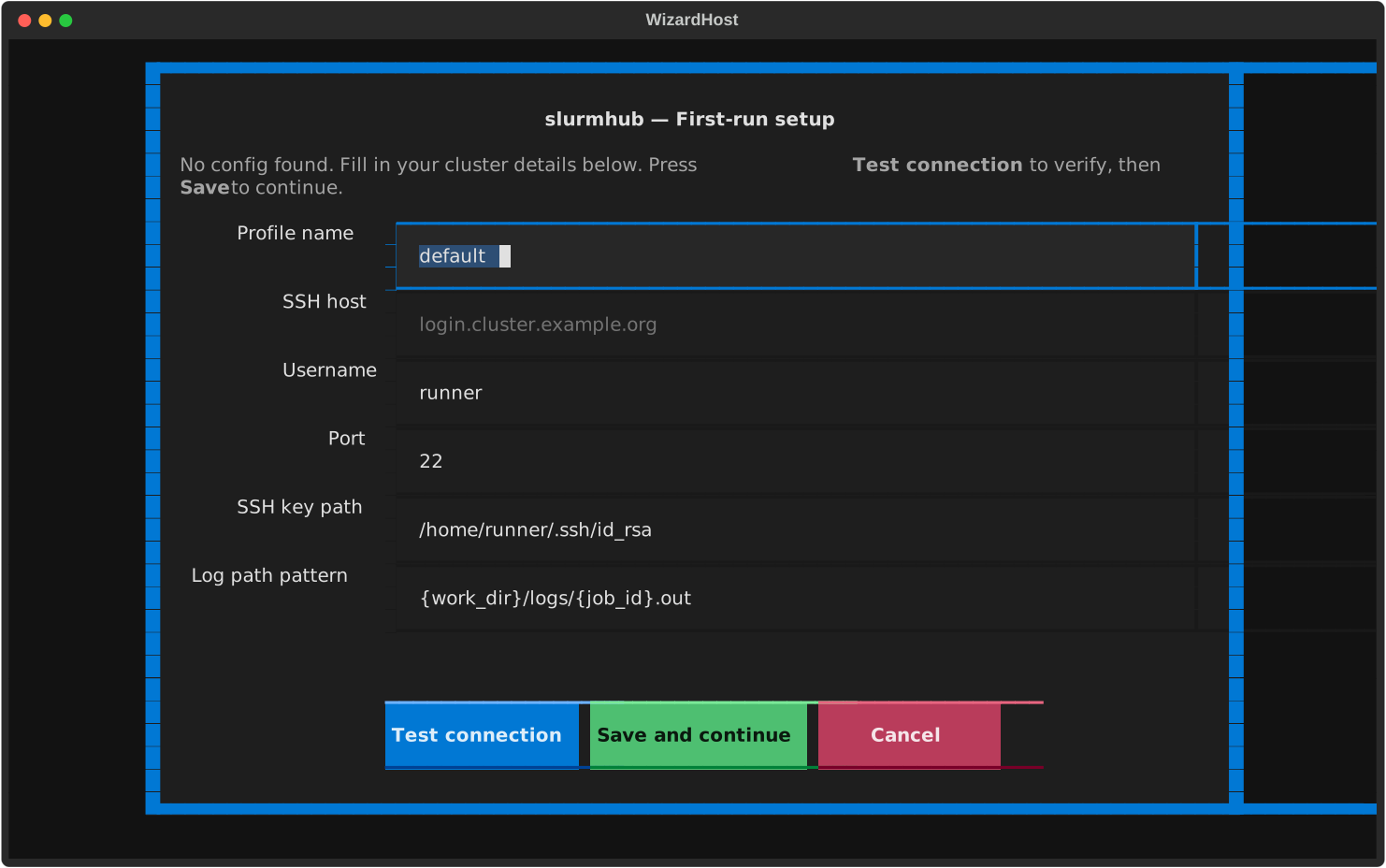
Test connection runs
echo "success"over SSH and reports the result.Save and continue writes the profile to
~/.config/slurmhub/config.tomland asks whether to add another cluster.Cancel /
Escaborts without writing anything.
You can re-trigger the wizard at any time by deleting the config file (or pointing
--config at a nonexistent path).
The main screen
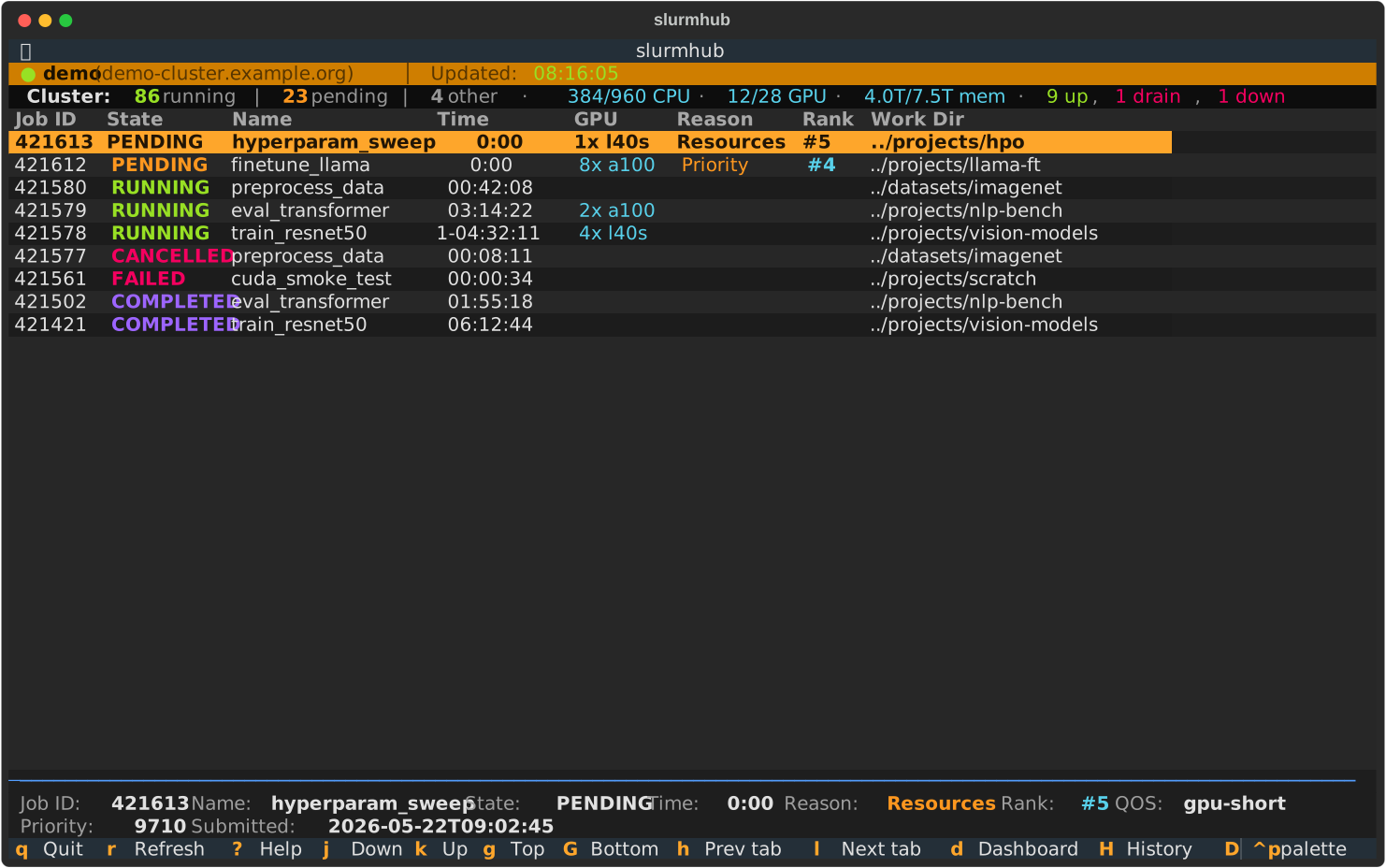
Top-to-bottom, the regions are:
Header — application title.
ConnectionStatus — colored dot (● green = ok, ● yellow = loading, ● red = error, ○ disconnected), profile name, host, last refresh timestamp. A yellow ⚠ appears when an auxiliary fetch (
sinfo, queue stats, pending details) failed but the main job list still loaded.ClusterStatus — cluster-wide running/pending counts plus an inline capacity strip (CPU/GPU/memory used vs total, nodes up/down).
JobTable — your jobs (active + recent history merged).
JobDetail — one-line summary of the currently selected row (toggle with
D).StatusBar — per-state badges, active filter/sort indicators, hint line.
Footer — clickable Textual binding hints.
Where to go next
SSH setup — keys, jump hosts,
~/.ssh/configaliases.Configuration overview — the TOML schema.
Job table — column meanings, filtering, sorting.
Keybindings reference — full cheatsheet.