Job history & analytics
Press H from the main screen to open the history screen — a durable record of
every job slurmhub has observed, backed by a local SQLite database (see
Database configuration). Unlike the live job table,
history survives restarts and keeps jobs long after they leave the queue.
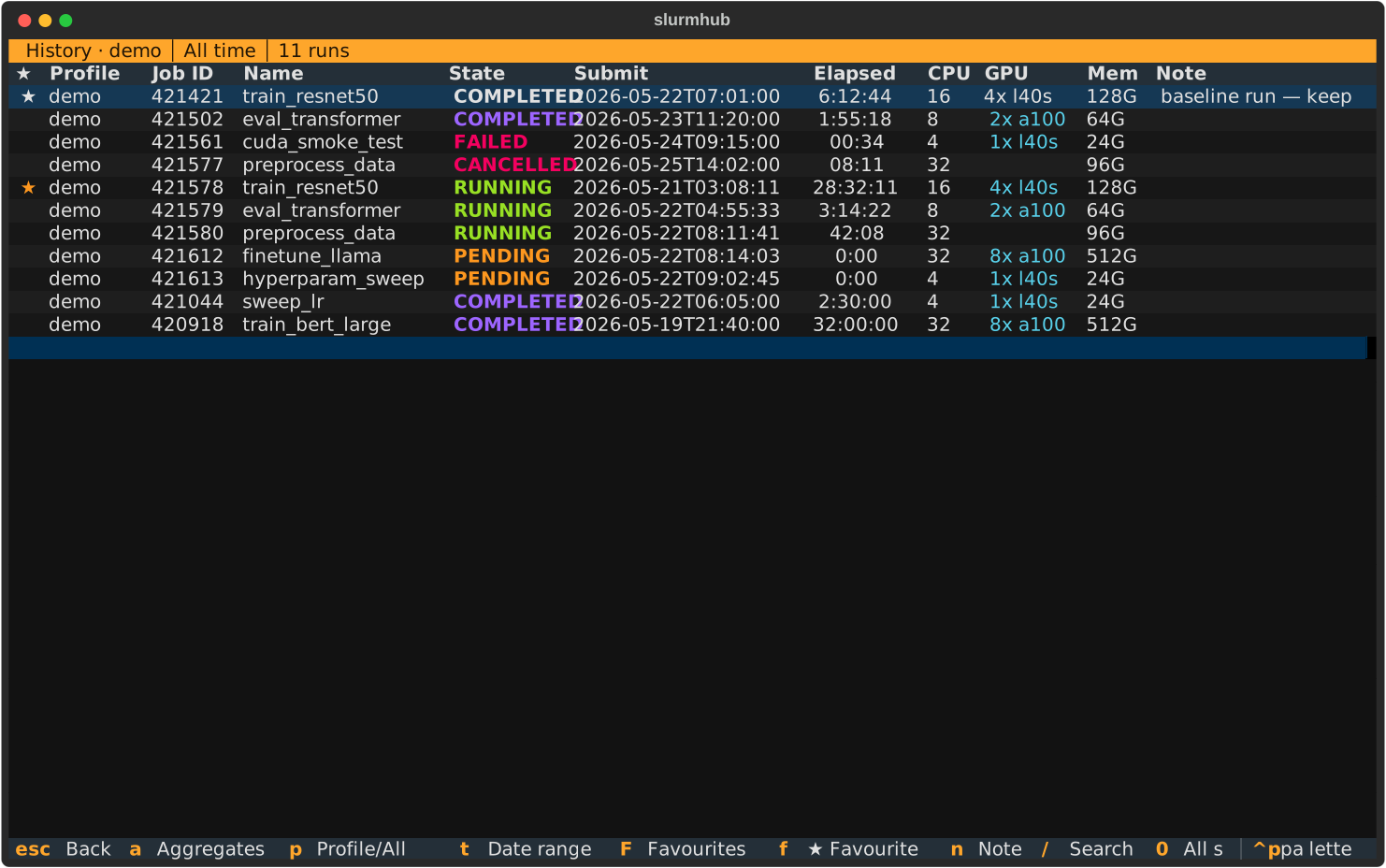
The screen has two modes, toggled with a:
Past runs
A scrollable, filterable table of recorded runs. Each row shows the favourite star, the profile/cluster it ran on, the job ID and name, final state, submit time, elapsed time, and the CPU / GPU / memory it reserved, plus any favourite note.
Filter and search to find a run:
Key |
Action |
|---|---|
|
Filter RUNNING / PENDING / COMPLETED / FAILED. |
|
Clear the state filter. |
|
Cycle the date range: all time → last 24h → 7 days → 30 days. |
|
Toggle scope between the current profile and all profiles. |
|
Show favourites only. |
|
Search by job name or ID. |
|
Open the selected run’s detail screen. |
Usage aggregates
Press a to switch to the analytics view, which sums what you consumed from the
cluster over the selected date range:
GPU-hours, CPU-hours, and memory (GB·h) — allocated resources × elapsed time, summed across the matching runs.
Average GPU utilisation — measured from periodic
nvidia-smisamples (only when utilisation capture is enabled; see below).A per-profile breakdown when scope is set to all profiles.
Note
Aggregates are computed from each run’s final allocation × elapsed time, so they are
independent of how many snapshots were recorded — re-opening the app does not
double-count. CPU-hours and memory figures depend on the extra squeue/sacct
fields slurmhub now captures (allocated CPUs and requested memory).
Favourites & notes
Mark runs you want to keep or revisit. Favourites are never removed by the retention policy, and you can attach a short note (e.g. “best hyperparams”).
From the history screen:
ftoggles the favourite on the highlighted row,nedits its note.From the job detail screen:
fandndo the same for the job you are viewing, and the star + note are shown at the top of the screen.
Favourites are not shown as a column in the live job table — they live in the history and detail views.
Keybindings
Key |
Action |
|---|---|
|
Toggle past-runs / usage-aggregates view. |
|
Toggle the selected run as a favourite. |
|
Edit the selected run’s note. |
|
Toggle current-profile / all-profiles scope. |
|
Cycle the date range. |
|
Favourites only. |
|
State filter / search. |
|
Move the cursor. |
|
Re-run the query. |
|
Help cheatsheet. |
|
Back to the job list. |